

Using Flux LoRA on Forge: A Step-by-Step Guide
Table of Contents Toggle
- Update Forge Installation
- Download and Install LoRA Models
- Add LoRA Models in Forge WebUI
- Compatibility Considerations
- Troubleshooting
- Key Takeaways
- Update Forge for LoRA
- Choosing the Right Model
- Downloading LoRA Models
- Organizing LoRA Files
- Using Lora With Flux AI
- Adjusting LoRA Weight
- Troubleshooting LoRAs
- Training LoRA Models
- LoRA Application Examples
Update Forge Installation
To ensure compatibility with current CUDA and PyTorch versions, update your Forge installation by running the ‘update.bat’ file in the ‘webui_forge_cuXXX_torchXXX’ folder.
Download and Install LoRA Models
Download LoRA models from Civitai, filtering by type (LoRA) and base model (Flux). Place these models in the ‘webui/models/Lora’ folder to make them accessible in Forge.
Add LoRA Models in Forge WebUI
Select the LoRA tab in Forge WebUI to add the downloaded models. Ensure correct placement and compatibility with the Flux checkpoint model to leverage Flux LoRA for enhanced AI image generation.
Compatibility Considerations
Not all LoRA models are compatible with the NF4 version of Flux. For optimal results, use LoRA models designed for GGUF versions of Flux, and set “Diffusion in Low Bits” to Automatic (fp16 LoRA) in Forge.
Troubleshooting
If you encounter issues, consider reinstalling Forge to update the CUDA library and PyTorch versions, which are essential for LoRA support.
Key Takeaways
Using Flux Lora on Forge: Key Takeaways
Update Forge: Run ‘update.bat’ in the Forge installation folder for current CUDA and PyTorch versions.
Organize LoRAs: Place Flux LoRA models from Civitai in the “models/Lora” folder within the Forge directory.
Integrate and Optimize LoRAs: Add LoRA models via the LoRA tab, ensuring correct placement and adjusting settings as needed.
Detailed Instructions
Update Forge by running ‘update.bat’ to ensure compatibility with LoRA functionality.
Download Flux LoRA models from Civitai and place them in the “models/Lora” folder.
Integrate LoRAs via the LoRA tab in Forge WebUI, ensuring correct folder placement.
Adjust settings like ‘Diffusion in low Bits’ to ‘Automatic (LoRa in fp16)’ if necessary, and use smaller LoRAs to prevent crashes.
Ensure LoRA model compatibility with the Flux checkpoint model and regularly update Forge.
Update Forge for LoRA

Update Forge for LoRA
To use LoRA models with Flux, updating Forge to the latest version is necessary. This ensures Forge is compatible with the Flux AI checkpoint models and the LoRA models that supplement them.
Updating Forge:
Run the update.bat file in the webui_forge_cuXXX_torchXXX Forge installation folder. This step guarantees the use of the current CUDA and PyTorch versions, which are essential for LoRA functionality.
For peak performance, use Forge with CUDA 12.1 + PyTorch 2.3.1.
Troubleshooting:
Users may encounter patching errors or compatibility issues during the update process. Reinstalling Forge or adjusting settings, such as changing ‘Diffusion in low Bits’ to ‘Automatic (LoRa in fp16)’, can resolve these issues.
Ensuring the LoRA model is compatible with the Flux checkpoint model, like using Flux.1 D (DEV model), is critical for successful integration.
Compatibility:
The LoRA model must match the base model. For example, using LoRAs designed for Flux.1 D with the Flux.1 DEV checkpoint ensures compatibility. Additionally, using smaller LoRAs, typically less than 30MB, can help prevent crashes and patching errors.
Settings:
Adjusting settings like ‘Diffusion in low Bits’ to ‘Automatic (LoRa in fp16)’ can help if patching errors occur. This prevents the need for patching and ensures LoRA functionality.
The correct placement of LoRA models within the ‘webui/models/Lora’ folder is crucial, specifically organizing them under a subfolder for easier management Model Organization.
Choosing the Right Model
Selecting the right base model is crucial for LoRA fine-tuning to achieve desired outcomes in AI image generation. Model selection maximizes the efficiency and effectiveness of the training process, leading to better results.
To choose the appropriate model, consider the specific needs of your project. Stable Diffusion models are widely used for their versatility and ability to generate photorealistic images.
Other models, like FLUX.1, offer specialized capabilities for high-performance and efficient applications.
Understanding the capabilities of each model helps ensure that the LoRA fine-tuning process aligns with your goals. This approach saves time and resources by focusing on the most suitable model for your specific AI image generation needs.
The number of training steps training steps should also be carefully considered to balance between training time and model accuracy.
LoRA significantly reduces memory requirements by focusing on lower-rank matrices to update only a small fraction of the model’s parameters, thus allowing for efficient and cost-effective adaptation of large models to specific tasks.
Downloading LoRA Models

Downloading Compatible LoRA Models
To integrate LoRA models with FluX AI models in Forge, users should download models from Civitai, filtering by type (LoRA) and base model (Flux) to ensure compatibility.
The downloaded models should be placed in the “models/Lora” folder within the Forge installation directory.
Evaluating Model Security and Feedback
Users must review the model’s description, ratings, and user reviews on Civitai to verify they are downloading a trustworthy and effective model.
Organizing the LoRA models by base type within the LoRA directory can improve usability and efficiency.
Staying Updated
Regular updates to Forge and adherence to specific CUDA and PyTorch versions can help mitigate potential compatibility issues when integrating LoRA models with FluX AI models.
Selecting and Organizing Models
Filtering models based on the base model and type ensures compatibility and effectiveness. By organizing LoRA models properly, users can efficiently manage and use various models for more precise and varied image generations.
Compatibility Considerations
The use of Civitai for downloading LoRA models and strict filtering by base model (Flux) ensures seamless integration with FluX AI models in Forge. Proper organization and updates can prevent potential compatibility issues.
Key Steps
Download LoRA models from Civitai, filtered by type (LoRA) and base model (Flux).
Place the downloaded models in the “models/Lora” folder within the Forge installation directory.
Review model descriptions, ratings, and user reviews to ensure trustworthiness and effectiveness.
Organize models by base type for improved usability and efficiency.
Regularly update Forge and adhere to specific CUDA and PyTorch versions to avoid compatibility issues.
LoRA models work by adding small adjustments to the base model without needing to retrain it from scratch. The Lora tab in Forge will display no content until at least one Lora model is installed.
Organizing LoRA Files
**Organizing **LoRA Files
Efficient organization of LoRA files is crucial for seamless integration with AI models. A structured approach to managing these files enhances usability and prevents confusion.
The directory structure should include a ‘safetensors’ folder for the LoRA files, with each LoRA having a corresponding subfolder inside ‘images’ containing example images.
A ‘categories.txt’ file helps classify the LoRAs for easy identification.
Custom Naming and Categories
Using custom names for LoRAs is vital. Some LoRAs may break if their original filenames are changed.
Store custom names in a ‘.json’ file alongside the ‘.safetensors’ file to enable sorting by category.
Prefixes like “Artstyle – Artist Name” or “Clothing – Type” aid in categorizing and finding specific LoRAs.
Current naming conventions lack standardization, leading to confusion among users standardization issue.
Best Practices for LoRA Organization
Organizing LoRAs by topic and maintaining a consistent naming convention eases the search process and prevents confusion.
Regular updates and organization guarantee efficiency and effective use in AI model applications.
The LoRA File Management Tool is open-source and allows for customization to meet specific organizational needs.
Versioning and Structure
Versioning is essential for tracking changes.
Use a folder structure such as ‘/ai-toolkit/config/my_lora_name/v1.0/config.yaml’ for configurations and ‘/ai-toolkit/output/my_lora_name_v1.0/’ for outputs.
This ensures that changes are tracked and previous versions can be revisited if needed.
Key Considerations
Consistency: Use a consistent naming convention and folder structure.
Versioning: Track changes by versioning configurations and outputs.
Organization: Regularly update and organize the LoRA collection.
Categorization: Use prefixes and categories to aid in finding specific LoRAs.
Using Lora With Flux AI
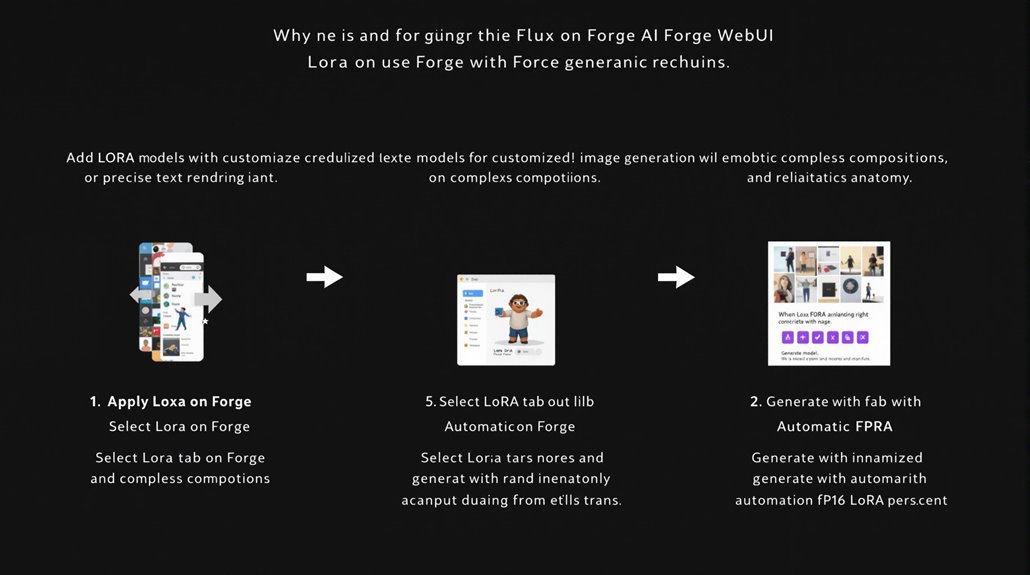
Using LoRA with Flux AI
To apply LoRA in the Forge WebUI, select the LoRA tab and add the downloaded LoRA model to the prompt. Then, generate an image using the Automatic (fp16 LoRA) option to prevent patching issues with low-bit Flux checkpoints.
This integration allows for customization and fine-tuning of the Flux AI model, leading to more diverse image outputs.
Customizing with LoRA involves uploading your images to train a model specific to your needs. This process refines the Flux AI model, enabling it to produce images that are highly tailored to your specifications, such as precise text rendering, complex compositions, and realistic anatomy. FLUX.1 models are known for their 12 billion parameters, which significantly improve the quality and diversity of the generated images.
To ensure optimal performance with LoRA and Flux AI, it is essential to update Forge regularly using the ‘git pull’ command in the ‘\stable-diffusion-webui-forge\’ folder, as new updates can include new model support, performance improvements, and fixes for existing issues.
Adjusting LoRA Weight
Understanding LoRA Weights
Adjusting LoRA weights is crucial in fine-tuning AI models for customized image generation. LoRA uses low-rank decomposition to represent weight updates through two smaller matrices, keeping the original weight matrix frozen.
Key Considerations
Layer Control: Selectively adjust or zero out layers. Tools like Flux Block Weight Remerger and sd-webui-loractl enable detailed weight adjustments.
Memory Efficiency: Techniques like QLoRA use quantization and paged optimizers to optimize memory usage.
Effective Adjustment
To adjust LoRA weights effectively, understand the technical specifications, including layer types and memory requirements. Utilizing the Lora Block Weight Extension Lora Block Weight Extension is essential for fine-tuning Lora models by controlling block weights.
By enabling LoRA for specific layers and managing trainable parameters, you achieve a balance between performance and memory usage.
Layer Optimization
This process enhances model performance and efficiency by allowing selective weight adjustments.
Techniques such as QLoRA further improve memory usage by leveraging quantization and paged optimizers.
Practical Application
Layer Types: Understand the different types of layers and their impact on model performance.
Memory Requirements: Manage trainable parameters to balance performance and memory usage.
Detailed Adjustments: Use tools like Flux Block Weight Remerger and sd-webui-loractl for fine-tuned control. The earlier release of the Flux Block Weight Remerger Oct 23, 2024 demonstrates its relevance in current AI model adjustments.
Balancing Performance and Memory
By adjusting LoRA weights judiciously, you can significantly improve model outcomes.
This involves optimizing layer performance while minimizing memory requirements.
LoRA, layer optimization, and weight balancing are critical in achieving high-quality, customized image generation.
Troubleshooting LoRAs

Troubleshooting LoRAs
Compatibility is key to integrating LoRA models with Flux AI. Common errors arise from loading incompatible models. Ensure that the file types are correct (e.g., .safetensors) and that the LoRA models are designed to modify both the text encoder and UNet model.
Regular updates and reinstallations of Forge can also help resolve compatibility issues and ensure seamless integration of LoRA models with Flux AI.
This process ensures that the models are optimized for use together, reducing errors and improving overall performance.
Model Versioning should be checked to confirm that the LoRA model is compatible with the version of Flux AI being used. This step prevents model crashes and ensures that all components work together smoothly.
Troubleshooting Steps include checking the installation path of the LoRA files, updating Forge, and using compatible models. These actions help identify and resolve issues efficiently.
Model Compatibility can also be ensured by using the Civitai Helper extension to download LoRA models directly into the appropriate folder. This helps maintain organization and prevents mixing incompatible models.
The Automatic (fp16 LoRA) option can be selected if the LoRA patching fails, providing an alternative solution to ensure successful integration.
The training process for LoRA models using Flux AI typically requires between 1,000 to 2,000 steps to achieve optimal results. Model merging techniques, such as CAT (Coefficient Auto-Tuning), can enhance efficiency and accuracy in combining specialized models.
Training LoRA Models
Training LoRA models requires advanced fine-tuning techniques to adapt base models for domain-specific tasks without extensive computational resources. Fine-tuning and optimization are crucial steps in this process.
To start training, prepare a diversified dataset with high-resolution images, ensuring they are representative of the desired theme or style. Proper dataset organization is vital, with images placed in structured subfolders to facilitate efficient training.
Layer optimization involves adapting query and value weight matrices for enhanced performance. Exploring low ranks, such as rank 1, can lead to effective domain-specific adaptations.
To mitigate overfitting, adjustments can be made to rank, dataset size, weight decay rates, or dropout rates.
Sequence length optimization and memory management techniques, such as precision, quantization settings, model size, and batch size, can improve training efficiency. The Sophia optimizer can be considered for further optimization to enhance model performance.
Key to successful LoRA training is a well-organized dataset and strategic optimization of model layers and ranks. This approach minimizes the need for extensive computational resources, making fine-tuning more accessible and efficient.
A flexible model like Flux, which supports text and various LORAs for diverse image generation, can be particularly useful for creating versatile AI-generated content.
Sequence length optimization and memory management techniques, such as precision, quantization settings, model size, and batch size, can improve training efficiency. The Sophia optimizer can be considered for further optimization to enhance model performance.
The Learning Rate should be carefully tuned to achieve optimal performance, considering that LoRA can use higher learning rates effectively. Key to successful LoRA training is a well-organized dataset and strategic optimization of model layers and ranks. This approach minimizes the need for extensive computational resources, making fine-tuning more accessible and efficient.
LoRA Application Examples

LoRa technology’s versatility extends far beyond its use in AI, applying to a wide range of sectors including agriculture, energy management, healthcare, smart cities, and industrial control.
Agricultural Efficiency
LoRa technology is particularly effective in agriculture, enabling wireless monitoring of vast areas with low-consumption devices, which minimizes costs and maximizes efficiency.
For instance, LoRa-based solutions monitor soil moisture and nutrient levels, allowing farmers to manage their irrigation systems more effectively.
Smart Cities
LoRa technology optimizes automation solutions in sectors such as waste management, parking, and street lighting, enhancing efficiency and reducing costs.
This includes using LoRa-enabled sensors to track waste capacities, making waste management more efficient.
Healthcare
LoRaWAN-enabled wearable devices in healthcare track patients with Alzheimer’s and dementia, improving safety and care.
These devices alert caregivers when patients leave designated safe zones, ensuring maximum safety without constant supervision.
In other AI applications, LoRA enhances model fine-tuning by reducing trainable parameters by up to 10,000x.
Industrial Control
The long-range capabilities of LoRa make it ideal for industrial control applications, including asset tracking and smart home devices.
This technology favors industrial operations by enabling smart construction machine usage and conveyor belt sensors to detect danger and prevent failure.
Smart irrigation systems utilizing LoRa Real-time Data Transmission can significantly reduce water usage by up to 50%.
Smart Homes and Buildings
LoRa technology devices can penetrate dense building materials, making them ideal for smart home and building devices.
LoRa sensors can detect water leakage and damage in homes, and they are also used in smart fire evacuation systems to help navigate hazardous premises safely.
Supply Chain and Logistics
LoRa technology facilitates the tracking of highly valued assets in transit by providing affordable smart supply chain and logistics solutions.
Its long-range, low-power consumption, and GPS-free geo-location abilities allow for easy monitoring of vehicles and cargo over large geographic regions and in harsh environmental conditions.